
We care about your privacy
By using cookies and related technologies (e.g. pixels, SDK), as well as by processing your personal data (including unique identifiers, browser data), we can better adapt the displayed content to your needs.By giving your consent to the storage of information on your terminal equipment, and to the access and processing of data, including in the sphere of profiling as well as market and statistical analysis, you will easily find exactly what you are searching for and what you need on Allegro. The controller of your personal data will be Allegro or, in certain cases, our partners (17 partners), including "IAB Europe Trusted Partners" (9 partners). Information about the purposes of personal data processing by our partners can be found in their privacy policies.
We and our partners may process personal data for the following purposes:
Store and/or access information on a device. Personalised advertising and content, advertising and content measurement, audience research and services development. Ensure security, prevent and detect fraud, and fix errors. Deliver and present advertising and content. Save and communicate privacy choices. Match and combine data from other data sources. Link different devices. Identify devices based on information transmitted automatically.
Your personal data are also processed to make it easier for you to use our web pagesThe purposes of processing are described in detail in the settings under "CHANGE MY CONSENTS" and in the Cookie Policy.Your consent is voluntary and is valid for 12 months. You may withdraw it at any time or renew it in the Cookie settings on the home page. Withdrawal of your consent does not affect the lawfulness of processing performed before the withdrawal.
Promotion options
How to create flexible bundles
Thanks to the flexible bundles, you can draw customers' attention to the products that are usually sold together.
Within a flexible bundle, you can offer customers all the product variants you sell. It means buyers will see a single bundle with variant selection, rather than over a dozen very similar bundles. When they buy a bundle:
- they have a full selection of variants to choose from — instead of searching for separate offers, they can easily select a variant that suits them best from your assortment
- they can buy only those offers from a bundle they are interested in.
With flexible bundles, you can:
- offer your customers a better and wider selection
- increase the visibility of your offers ― also the less popular ones
- make your bundles stand out with discounts and attract buyers with competitive prices
- decide which specific products within a bundle will be discounted.
A flexible bundle consists of various offers. A customer can buy the entire bundle or choose a product and different offers from the same category.
As part of multipacks (product sets), you sell multiple units of a product within a single offer. A product set can consist of:
- different products or
- multiple units of the same product – meaning a multipack. A customer can only buy the entire product set. Find out more about product sets (including multipacks) in this article.
How to create a flexible bundle
- Go to the Offer bundles tab.
- Click [add new].
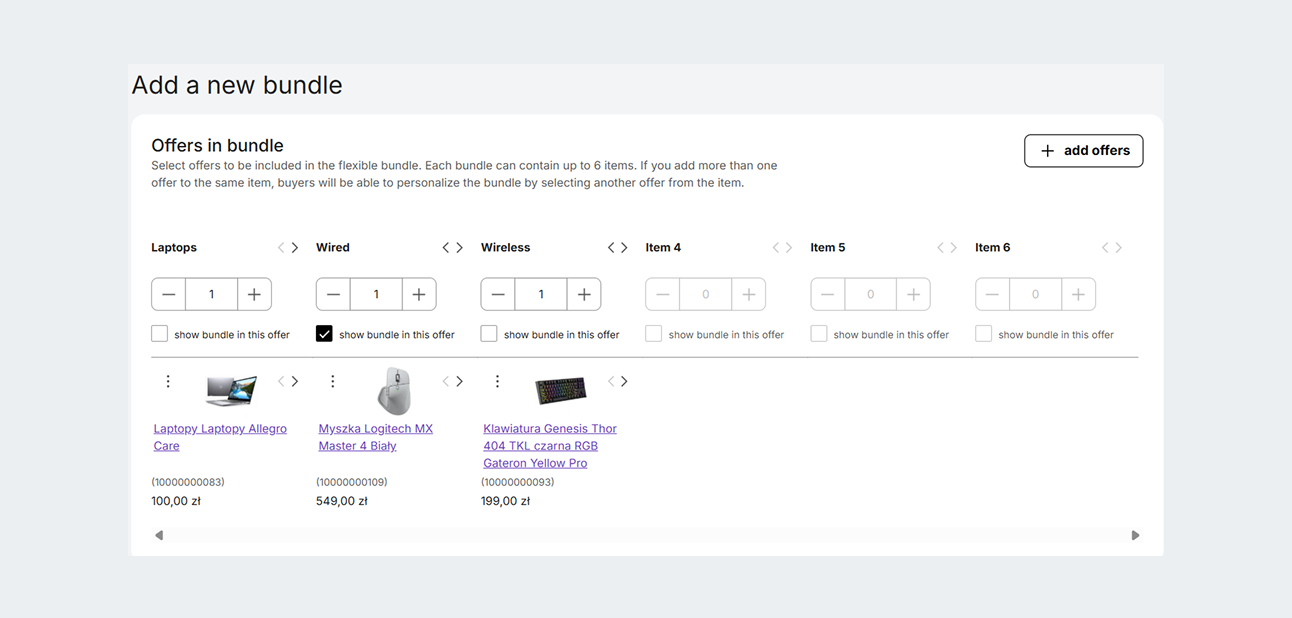
- Click [add offers] and select the offers the bundle will consist of. One bundle can consist of a maximum of 6 positions — a group of offers from the same category.
- Click [save]. If you want, you can add a discount to the bundle or selected offers.
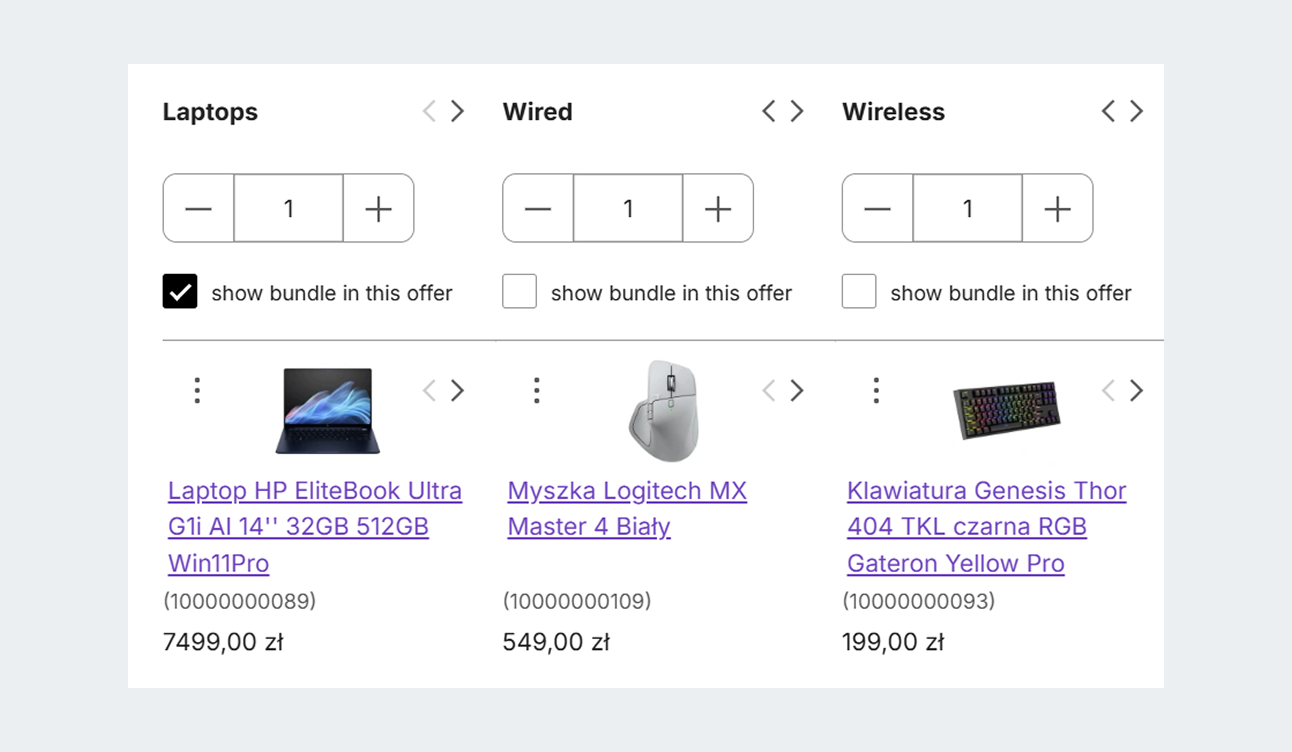
- Decide on which offer's page you want to display the bundle — check or uncheck the show bundle in this offer option. For example, you want to display the following bundle only on the iPhone's page — iPhone + phone case + charger — because the customer might be willing to buy cheaper accessories along with it.
- Check the summary and, if everything is correct, click [save bundle]. Finished!
We group offers into consecutive positions based on their category. If you add more than one offer to the selected position, the customer will be able to personalize the bundle and select another offer when making a purchase.
You can change the order using the arrows and move offers between the positions, to present your bundle in the best possible way.
How we display bundles in other marketplaces
We will display your bundle to the buyers from allegro.cz, allegro.sk, or allegro.hu, if you list at least 2 offers from that bundle in foreign marketplaces.
If you list only one offer from a bundle in a foreign marketplace, your bundle will not be visible to the buyers from allegro.cz, allegro.sk, or allegro.hu.
If an offer from your bundle ends, we will stop displaying it as available to buy in a bundle. We will show it again only if you resume it. If only one offer is active — we will stop displaying such a bundle to customers. We will show it again if you resume the terminated offers.
You can check the offer's status in the My Assortment tab. To check which offer is available to purchase in a bundle in a selected marketplace, go to the Flexible bundles section and the bundle editing page. We mark the availability of an offer for purchase in a bundle with a flag — for example, we will display Polish and Czech flags for a bundle available on allegro.pl and allegro.cz.
If an offer is not available for a purchase in a given marketplace — the flag will be grayed out, and we will display a message next to it.
How to set a discount in an existing bundle
- Go to the Flexible bundles section in the Offer bundles tab.
- Click the pencil icon next to the selected bundle.
- Select Add discount.
- You can do it in two ways:
- Click [save bundle]. Finished!
How to set a discount for the whole bundle
- Indicate the discount percentage for the whole bundle. You can do it separately for each marketplace or copy it for other marketplaces.
- Select the number of various products in a bundle that the customer must purchase for the discount to apply.
- Click [save]. We will deduct the indicated percentage from each offer's price. The discount for the whole bundle will amount to the sum of what was deducted.
Example
You add a 10% discount to a flexible bundle: iPhone (2,200 PLN) + phone case (100 PLN) + charger (80 PLN). You select the option with information that the discount will be available if the customer buys at least two different products from the bundle. The customer selects iPhone + phone case. The price of the entire bundle with the applied discount is: 1,980 PLN + 90 PLN = 2,070 PLN.
How to edit the bundle discount in bulk
- Go to the Flexible bundles section in the Offer bundles tab.
- Select the bundles you want to edit the discount for.
- Click [edit discounts].
- After you introduce changes, click [save].
If you want to remove the discount from a bundle, go to the bundle's edit page and click the trash can icon.
Automatic combination of offers into flexible bundles
We can automatically combine selected offers into a bundle. We verify whether the offers match, among others, based on the selected parameters of the products they are linked to. We also consider sales in a given offer and the product popularity. Bundles will be visible to buyers at once.
Example
You have 4 offers: shampoo for curly hair + conditioner for curly hair from X brand + conditioner for curly hair from Y brand + mask for curly hair. You complete the Hair type parameter with curly in all offers. We automatically create a flexible bundle out of them and we group both conditioners under the appropriate position.
Flexible bundles we created automatically do not receive a discount. You decide yourself whether to add it.
How to manage flexible bundles
Go to the Flexible bundles section in the Offer bundles tab. You can manage your own bundles as well as those we created automatically. In order to search for the latter, select the automatic filter.
In the Flexible bundles section:
- you can create and edit your own bundles – you decide yourself which product groups make a perfectly tailored, complete order for your customers
- you can assign and change percentage discounts – add a new discount or edit the existing one
- you can delete the selected bundle – if you decide that any bundle (including those created by us automatically) does not align with your sales strategy, you can remove it anytime. In such a case, we will never automatically recreate such a bundle. If you change your mind later, you can group the same offers into a bundle yourself at any time.
You can also find your sales statistics here. You can check how many flexible bundles you have sold in the last 30 days.
How to remove selected bundles in bulk
- Go to the Flexible bundles section in the Offer bundles tab.
- Check selected bundles.
- In the menu at the bottom of the screen, click [remove bundles]. Finished!
Flexible bundles and other promotions and programs
How bundles with a discount work when an offer participates in a campaign
If an offer that belongs to a flexible bundle participates in a campaign that lowers its price, then such an offer can still be purchased in a bundle — but the bundle discount does not apply. Its price will be updated to match the campaign prices.
How bundles with a purchase limit work
If an offer participates in a campaign with a buyer limit or a unit number limit, and the limit is lower or equal to the number of offer units set in the bundle — then the offer will not be visible in the bundle when the limit applies. The bundle will be visible to buyers if it consists of other offers.
Example
A bundle consists of the following offers: lamp + LED bulbs (4 units) + regular bulbs (4 units).
- An offer with the LED bulbs participates in a campaign where the limit is 2 units. We display the following bundle: lamp + regular bulbs (4 units).
- The offer with LED bulbs participates in a campaign where the limit is 10 units. We display the bundle unchanged: lamp + LED bulbs (4 units) or regular bulbs (4 units) to select from.
What Features (promotion options) are
Use promotion to attract even more customers to your offers on Allegro.
Take advantage of promotion options to increase your chances of selling. Below, you can find a complete guide to different ways you can feature your offers on Allegro.
Types of promotion
You can select the option that best fits your sales strategy. You can choose:
- a Feature
- a Flexible Feature
- promotion on the category page.
Feature or Flexible Feature
When you select one of these options, your offer will frequently appear in search results under the Promoted products or Promoted offerssections — above the offers of sellers who do not use promotion. It will also be visible on the list of promoted products in a given category (if it is a Top offer).
In search results:
- we do not display these sections in the view of sorting by relevance. However, promoted products matching the buyer's query have a higher chance of ranking over non-promoted products.
- for other sortings, we display featured offers in the Promoted products or Promoted offers sections — they are visible above the products that sellers do not promote.
Differences between a Feature and Flexible Feature
Both options work similarly — however, they differ in the promotion cycle length and billing method.
- If you are experimenting and want to see what works best for your offer — choose a Flexible Feature. We will promote your offer in 1-day cycles, that we renew every 24 hours.
- If you already know how you want to promote your offers and prefer a lower initial fee — choose a Feature. We will promote your offer in 10-day cycles. This means the fixed fee for enabling the Feature is charged once every 10 days.
Promotion on the category page
When you enable this option, we may display your offer in the Może tego szukasz? carousel on the category page. We will promote your offer in 10-day cycles.
Buyers will see your offer's thumbnail, price, and title. From there, they can click through to your offer page.
We display up to 30 offers in the carousel.
- The first 3 offers are selected based on our recommendation system, which picks offers according to buyer behavior.
- The rest of the offers will be selected randomly.
Who and in what offers can enable promotion
Before enabling promotion, make sure your account and offers meet the requirements. You can promote offers in the Polish, Czech, Slovak, and Hungarian marketplaces.
What the requirements regarding sellers are
You can use promotion options if:
- you hold a business account
- your sales quality level is at least Neutral.
What the requirements regarding offers are
You can enable promotion options if you meet all of the following requirements:
- you sell with the buy now option
- you list products with the following Condition parameter value: New, Digital product, Collectible product, or Investment product
- your offer is not a set of different products (for example, a shampoo and conditioner). Your offer can be a multipack — meaning multiple units of the same product (for example, a six-pack of drinks).
What you can gain with promotion
- You increase your chances of your offers ranking higher in search results. Across all sorting options, promotion is one of the factors we consider when determining the display order.
- Your offer gets a chance to represent a given product Each product from the Allegro Product Catalog has a representative — a Top offer.
- When selecting the Top offer, our algorithm relies on many factors — primarily promotion.
- If your offer does not become a Top offer, on allegro.pl, it will be available under the [see X offers] button, where promoted offers are also visible higher up.
Your buyers can use 0% installments (Raty Zero) on allegro.pl. Buyers from Poland can use free installments (0% APR), which significantly boosts the attractiveness of promoted offers. Such offers feature a special blue raty zero badge. Buyers can apply for up to 20 zero-interest installments for amounts ranging from 1,000 PLN to 20,000 PLN. Read more about when you can sell in installments.
Your offer may appear on Google. Features allow you to highlight your offers beyond Allegro. Promoted offers are included in a pool of offers eligible to be displayed on Google as part of our paid advertising.
How to manage promotion options
You have full control over when and for how long you promote your offers. You can manage promotions using various tools.
Listing form
You can enable and disable individual Features and Promotion on the category page in the form.
To enable promotion:
- Go to the listing form.
- Provide information about the product you sell.
- Go to the Promotion options section and select the option that suits you best: Feature, Flexible Feature, or Promote on the category page
You can change or disable a promotion option in the listing form — if you edit your offer.
The My Assortment tab
In the My Assortment tab, you can:
- enable or disable a Feature and Flexible Feature:
- in a selected offer
- in multiple offers at the same time — select offers and click [promotion] on the lower bar
- check what offers you are currently promoting — we will display a special badge next to them, and by clicking on [details], you will be able to see more information about the option and planned changes in the offer promotion. You can also check which of your offers gained Features free of charge.
- change the promotion type in your offers: for example, from a Flexible Feature to a Feature.
- disable promotion options in expired offers — you can decide if you want to promote them further after relisting.
Discount Center
In the Discount Center, you can enable promotion in offers for which you have discounts.
In the Discount Center, you can activate discounts for product promotion. You can do it as part of the planned promotional campaigns. Discount types depend on the specific campaign.
We will prepare for you a list of offers in which you can activate the discount. Select the ones that you want to promote. You can be sure that they come with a discount — you do not need to look up offers that qualify for the discount on your own. This allows you to manage promotion options more quickly. In some cases, you can also indicate the offers for which you want to use discounts yourself.
Learn more about offer discounts and find out how to activate them.
Allegro API
- Before integrating, register your app in the developer dashboard to obtain credentials. You can find guidelines on how to do that in the Allegro Developer Dashboard.
- See what promotion packages are publicly available for a given offer.
- Enable the selected promotion package or change the current settings for a given offer.
- You can check the current offer promotion status and information about active packages any time.
How we charge the promotion fees
- In the case of Features, you pay when you enable them. For every sale, we charge an additional sales commission for featured offers. It amounts to 0.75 of the basic sales commission and is collected separately.
- If you only use Promotion on the category page, we only charge a fixed fee, without additional sales commission.
- Promotion fees may vary if you receive a free Feature package.
Use the fee calculator to estimate the actual cost of offer promotion.
1-day Flexible Feature
- Fee for 1 day: 2.90 PLN gross.
- Additional sales commission on each sale: 0.75 of the sales commission value applicable in a given category.
10-day Feature
Rate for most categories, excluding the categories listed below.
- Fee for 10 days:
- in Culture and Entertainment — 2.90 PLN gross
- in the following subcategories: Women's Jewelry, Men's Jewelry, Kids' Jewelry, Wedding Jewelry, Piercing, Clothing, Footwear, Accessories, Clothing and Footwear in the Kids category, as well as in Erotic Lingerie and Clothing in the Health category — 5.90 PLN gross.
- in other subcategories — 19.90 PLN gross.
- Additional sales commission on each sale: 0.75 of the sales commission value applicable in a given category.
Promotion on the category page
- Fee for 10 days: 29.90 PLN gross
- Additional sales commission on each sales: n/a.
Detailed rates can be found in Appendix No. 4 of the Allegro Terms & Conditions. You can check the total cost in the summary, when you list or edit an offer.
Where to check offer promotion fees
- Go to the Settlements with Allegro tab.
- Select the operation type filter. You will see the costs for marketing actions we have already charged.
You can check the prognosis of costs that will soon be added to your bill — including recurring fees and sales commissions for Features — in the Upcoming automatic fees tab.
Features free of charge
From offers that meet requirements and have attractive prices, our algorithm selects a daily pool of offers that receive a 1-day Feature free of charge under the Features for great prices program.
Within the Feature free of charge, we grant:
- Fee for 1 day: 100% discount
- Additional sales commission on each sale: 100% discount.
You do not need to apply to join the Features for great prices program. If your offer qualifies for it, we will automatically enable a 1-day Feature. After 24 hours, we will disable it and carry out another offer qualification process. We take into account offers that you have not promoted for the last 60 days.
Frequently asked questions
What does it mean that the fees are recurring?
One fee cycle is:
- 10 days — for a Feature and Promotion on the category page
- 1 day — for a Flexible Feature.
When you promote an offer, we will charge the fee for the first cycle in advance. If you continue to promote the offer after that time, we will charge fees for the next cycle.
Example
If you use a Feature and promote an offer for 20 days, the fee will be added to your invoice twice: on the 1st and 11th day of the offer.
I am cancelling the paid option within 12 hours of listing the offer. Will you refund me the fee?
No. We do not refund the fees charged in advance. You can find the fees for Features in the Upcoming automatic feestab.
How to check when my promotion cycle ends?
You can check this in the Settlements with Allegro tab in the Operations History section. A cycle lasts for 10 days from the day we charge the fees. In the My Assortment tab, you can add a Feature column to your view, where we will display the type and status of the Feature in a given offer.
You can also check the future fees in offers. To do that, go to the Upcoming automatic fees tab.
How do you calculate an additional sales commission for featured offers?
We calculate it each time the sale is made, similarly to the standard sales commission.
An additional sales commission for featured offers is the same for regular and business accounts. It amounts to 0.75 of the sales commission in a given category, as specified in Appendix no. 4 to the Allegro Terms and Conditions — Part IV. Fees for additional options. Sales commission for featured offers is accounted for on your billing as a separate position (besides the standard sales commission). We charge fees for additional services separately.
What should I do so that the promotion fee is not charged for the next cycle?
Disable the promotion in a given offer. You can do this immediately or schedule it to be disabled at the end of the current billing period. You can do it by editing the offer or directly in the My Assortment tab.
Example
If you enable a Feature on February 14 at 3:00 p.m, and only want to promote the offer for 10 days, schedule to turn it off right away. You can also manually disable a Feature on February 24 just before 3:00 p.m.
What happens if you end an offer with a promotion option?
We do not charge promotion fees in offers that ended. If you do not want to promote them after relisting, disable the promotion options.
If you do not disable promotion in offers that ended, we will charge you the fee for the next cycle after you resume it — we will also charge the sales commission fee for featured offers. If you resume an offer while the previous billing cycle is still ongoing, the next fee will only be charged when the subsequent cycle begins.
How to report changes in product variants
We have prepared a new tool that allows you to manage product variants more easily. Learn how to use it and what changes you can report.
In the My Assortment tab, you can check the product variants available in each offer and suggest changes to them. This gives you the opportunity to enhance the quality of product variants and the entire Allegro Product Catalog.
You can suggest changes when you want to:
- extend the variant group with the additional products that you offer
- indicate duplicated variants in a group
- report incorrect variants in a group.
How it works
- Go to the My Assortment tab.
- Select an offer and click [more] to display its details.
- Go to the Product variants section and click [see].
- We will display the Product variants in the Catalog section, where you can check how we present variants to buyers in a given offer.
If some variants are grayed out, it means you do not have them in your assortment. If the buyer clicks such a variant in your offer, they will see an offer from another seller. If you notice any errors, click [suggest a change]. We will redirect you to the page titled Submit suggestions for changes in variants. As a suggestion, you can:
- add products to an existing variant group — by clicking [add products]. In a new window, enter the numbers of your offers or a part of the offer title in the search field. Check the selected offers and click [save].
You can repeat the search if you want to add more products to the group.
We may also display other messages — learn more. - remove non-matching variants — if you want to delete a product from the group (for example, it is a model different than others), select it and click Remove non-matching on the bottom green bar.
- merge duplicates— if you want to merge several images of a single product (for example, if the same model is in two different images), check all thumbnails with the same product and select Merge duplicates on the bottom green bar. You can do it multiple times and for different products. After reviewing the suggestion, we will decide which thumbnail to use.
- add products to an existing variant group — by clicking [add products]. In a new window, enter the numbers of your offers or a part of the offer title in the search field. Check the selected offers and click [save].
We will show all your changes on the Submit suggestions for changes in variants page. On the left-hand side, you can see what the group will look like if we accept your suggestion. On the right-hand side, in the Summary section, you can see the list of changes you have entered. You can also check the additional information:
- eye icon — click it to display the details regarding your product linked to the products in that variant group
- yellow icon with an exclamation mark — error. Errors may occur when an offer is incorrectly linked to a product or when product parameters are missing. To see the error details, click the eye icon.
If the Summary is correct, click [submit a request]. We will verify the suggestions and let you know by email whether we accept your changes.
What else you can do in the new tool
When you add products to an existing variant group on the Submit suggestions for changes in variants page, we may display additional messages.
- Next to a product, you can see the message: product linked to another group. Click [view group] to check what that group consists of. If you check that product, you will suggest linking both groups — the one you are correcting, and the one in which the product currently is. After saving the changes, you can preview the group after linking in the Summary.
- You cannot select some products you look up — this means you cannot add them to the group. You cannot add the following products to a variant group:
- products that fall into a category different from the current product categories within the group. If you think that such products should be a part of the group you are correcting, report incorrect product information through the link available in the displayed message.
- products of a brand different from the brand of other products in the group you are correcting. A single group can only consist of products of the same brand. If you think that the products you are adding should be of the same brand as the others, report incorrect product information through the link available in the displayed message.
- product sets.
How to check what is going on with your change request
We will handle your request as soon as possible. You can check its status in the My variant change requests tab, in the Variants section.
Your requests can have the following statuses:
- Accepted
- Pending verification
- Rejected.
When we may reject your request
- If you link products that are not a variant into a single group — for example, different shoe models.
- If you link images that showcase different products — for example, T-shirts in different color shades.
- If you want to delete a product that is a variant and matches the group — other sellers may have in their assortment, for example, additional dress colors that will be in a group with yours.
Display ad on Allegro – frequently asked questions
If you want to promote your store on Allegro, you can rent an advertising slot – a special place on the site where we will display your advertisement.
What is a display ad on Allegro?
A display ad is one of promotion options available on Allegro. With that, you can display an ad in various places on Allegro to promote a product, an offer, or a brand. Those specific places in which we display ad formats are called ad slots.
What is an ad slot and ad format?
Ad slots are special places on Allegro where you can promote your offers. The ad slots are placed in locations frequently visited by the buyers, such as: the Allegro main page, an offers list, and the login page.
An ad format is displayed in the slot. It has a prescribed size and specifications. For example, on the offers list we display a so-called skyscraper:
How much does an ad cost?
- The display ad is sold basing on the number of views and contact from the customers, unlike the Feature option and promoting particular offers.
- The first shopping model is Cost Per Mille (CPM) – where you pay for every 1000 advertising impressions.
- Another shopping model available is a Flat Fee (FF). In this model, you pay a fixed fee for displaying your ad in a selected ad slot for specific duration, for example, one day, a week, or a month.
How is a display ad settled?
If you want to have a display ad, you need to order the service in the Allegro Ads Agency. In the request, declare the period of time you want to use which format, and state the price you have confirmed with the Allegro Ads Agency based on the broadcast price list. The price list (available only in Polish) contains gross prices, which are not subjected to rebates, according to the Ads Agency, and the rebate policy. Check out all the details here (available only in Polish).
Where to find the advertising Terms & Conditions?
You can find the Terms & Conditions on the Allegro Ads page, or in the Dokumenty do pobrania (Documents for download) section.
Got any questions?
If you have any questions concerning ads on Allegro, contact us at reklama@allegro.pl.
The rules of Promoting on a category page
You must meet special conditions to use the promotion option on the category page. Some products cannot be promoted in this way.
If you want to promote on a category page, you need to meet specific conditions.
You cannot promote items pornographic in nature. Offers for adults only visible on a category page may be removed.
Additional constraints also apply to the descriptions of promoted offers:
- the description cannot include information about your other offers if you have listed adult-only items
- the title cannot contain a web address (exception: the sale of a domain which consists of the a web address mentioned)
- the offer cannot affect Allegro’s reputation.
Offers promoted on a category page cannot redirect to offers which are subject to restrictions (especially by providing a web address).
If your offer violates the rules listed above, we may remove it.
appearance: light theme
