You are using an old browser that is not supported. You may experience problems with security and page display.
See which browsers will offer you secure and convenient shopping.
See which browsers will offer you secure and convenient shopping.

We care about your privacy
By using cookies and related technologies (e.g. pixels, SDK), as well as by processing your personal data (including unique identifiers, browser data), we can better adapt the displayed content to your needs.By giving your consent to the storage of information on your terminal equipment, and to the access and processing of data, including in the sphere of profiling as well as market and statistical analysis, you will easily find exactly what you are searching for and what you need on Allegro. The controller of your personal data will be Allegro or, in certain cases, our partners (17 partners), including "IAB Europe Trusted Partners" (9 partners). Information about the purposes of personal data processing by our partners can be found in their privacy policies.
We and our partners may process personal data for the following purposes:
Store and/or access information on a device. Personalised advertising and content, advertising and content measurement, audience research and services development. Ensure security, prevent and detect fraud, and fix errors. Deliver and present advertising and content. Save and communicate privacy choices. Match and combine data from other data sources. Link different devices. Identify devices based on information transmitted automatically.
Your personal data are also processed to make it easier for you to use our web pagesThe purposes of processing are described in detail in the settings under "CHANGE MY CONSENTS" and in the Cookie Policy.Your consent is voluntary and is valid for 12 months. You may withdraw it at any time or renew it in the Cookie settings on the home page. Withdrawal of your consent does not affect the lawfulness of processing performed before the withdrawal.
How to create a flexible bundle
How we display bundles in other marketplaces
How to edit the bundle discount in bulk
Automatic combination of offers into flexible bundles
How to manage flexible bundles
How to remove selected bundles in bulk
Flexible bundles and other promotions and programs
How we display flexible bundles to buyers
How to create flexible bundles
Thanks to the flexible bundles, you can draw customers' attention to the products that are usually sold together.
Within a flexible bundle, you can offer customers all the product variants you sell. It means buyers will see a single bundle with variant selection, rather than over a dozen very similar bundles. When they buy a bundle:
- they have a full selection of variants to choose from — instead of searching for separate offers, they can easily select a variant that suits them best from your assortment
- they can buy only those offers from a bundle they are interested in.
With flexible bundles, you can:
- offer your customers a better and wider selection
- increase the visibility of your offers ― also the less popular ones
- make your bundles stand out with discounts and attract buyers with competitive prices
- decide which specific products within a bundle will be discounted.
A flexible bundle consists of various offers. A customer can buy the entire bundle or choose a product and different offers from the same category.
As part of multipacks (product sets), you sell multiple units of a product within a single offer. A product set can consist of:
- different products or
- multiple units of the same product – meaning a multipack. A customer can only buy the entire product set. Find out more about product sets (including multipacks) in this article.
How to create a flexible bundle
- Go to the Offer bundles tab.
- Click [add new].
- Click [add offers] and select the offers the bundle will consist of. One bundle can consist of a maximum of 6 positions — a group of offers from the same category.
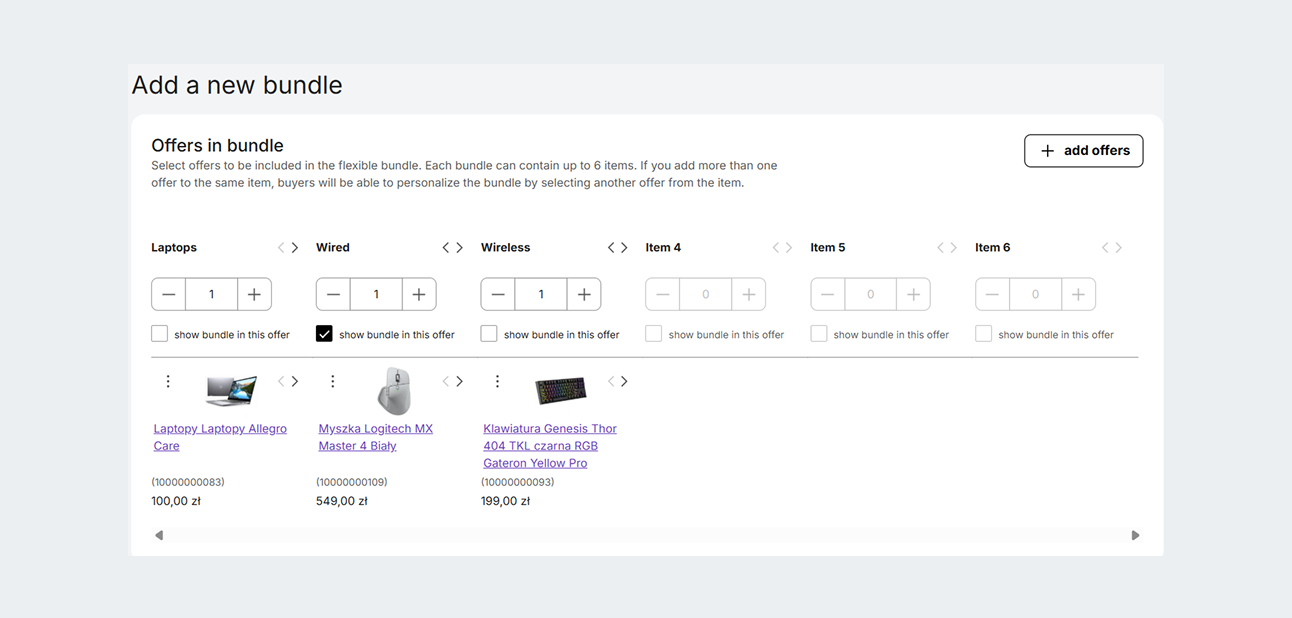
- Click [save]. If you want, you can add a discount to the bundle or selected offers.
- Decide on which offer's page you want to display the bundle — check or uncheck the show bundle in this offer option. For example, you want to display the following bundle only on the iPhone's page — iPhone + phone case + charger — because the customer might be willing to buy cheaper accessories along with it.
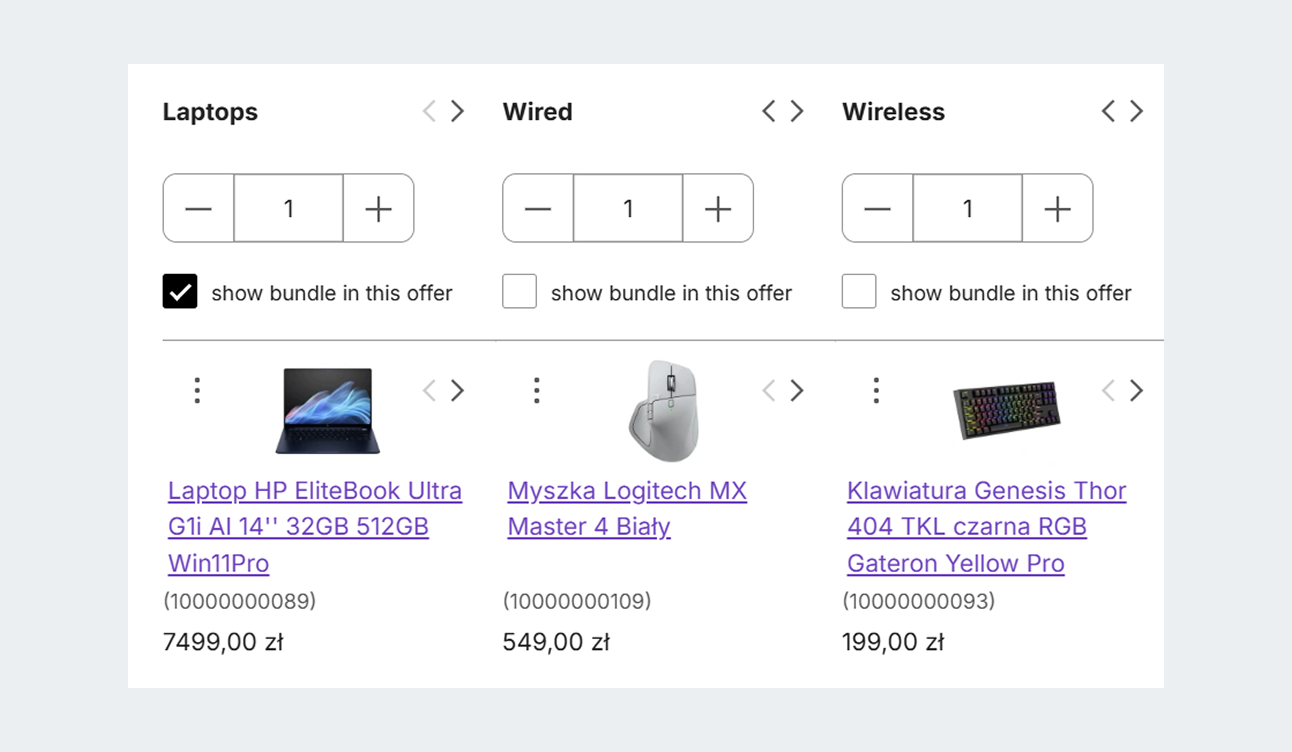
- Check the summary and, if everything is correct, click [save bundle]. Finished!
We group offers into consecutive positions based on their category. If you add more than one offer to the selected position, the customer will be able to personalize the bundle and select another offer when making a purchase.
You can change the order using the arrows and move offers between the positions, to present your bundle in the best possible way.
How we display bundles in other marketplaces
We will display your bundle to the buyers from allegro.cz, allegro.sk, or allegro.hu, if you list at least 2 offers from that bundle in foreign marketplaces.
If you list only one offer from a bundle in a foreign marketplace, your bundle will not be visible to the buyers from allegro.cz, allegro.sk, or allegro.hu.
If an offer from your bundle ends, we will stop displaying it as available to buy in a bundle. We will show it again only if you resume it. If only one offer is active — we will stop displaying such a bundle to customers. We will show it again if you resume the terminated offers.
You can check the offer's status in the My Assortment tab. To check which offer is available to purchase in a bundle in a selected marketplace, go to the Flexible bundles section and the bundle editing page. We mark the availability of an offer for purchase in a bundle with a flag — for example, we will display Polish and Czech flags for a bundle available on allegro.pl and allegro.cz.
If an offer is not available for a purchase in a given marketplace — the flag will be grayed out, and we will display a message next to it.
How to set a discount in an existing bundle
- Go to the Flexible bundles section in the Offer bundles tab.
- Click the pencil icon next to the selected bundle.
- Select Add discount.
- You can do it in two ways:
- Click [save bundle]. Finished!
How to set a discount for the whole bundle
- Indicate the discount percentage for the whole bundle. You can do it separately for each marketplace or copy it for other marketplaces.
- Select the number of various products in a bundle that the customer must purchase for the discount to apply.
- Click [save]. We will deduct the indicated percentage from each offer's price. The discount for the whole bundle will amount to the sum of what was deducted.
Example
You add a 10% discount to a flexible bundle: iPhone (2,200 PLN) + phone case (100 PLN) + charger (80 PLN). You select the option with information that the discount will be available if the customer buys at least two different products from the bundle. The customer selects iPhone + phone case. The price of the entire bundle with the applied discount is: 1,980 PLN + 90 PLN = 2,070 PLN.
How to edit the bundle discount in bulk
- Go to the Flexible bundles section in the Offer bundles tab.
- Select the bundles you want to edit the discount for.
- Click [edit discounts].
- After you introduce changes, click [save].
If you want to remove the discount from a bundle, go to the bundle's edit page and click the trash can icon.
Automatic combination of offers into flexible bundles
We can automatically combine selected offers into a bundle. We verify whether the offers match, among others, based on the selected parameters of the products they are linked to. We also consider sales in a given offer and the product popularity. Bundles will be visible to buyers at once.
Example
You have 4 offers: shampoo for curly hair + conditioner for curly hair from X brand + conditioner for curly hair from Y brand + mask for curly hair. You complete the Hair type parameter with curly in all offers. We automatically create a flexible bundle out of them and we group both conditioners under the appropriate position.
Flexible bundles we created automatically do not receive a discount. You decide yourself whether to add it.
How to manage flexible bundles
Go to the Flexible bundles section in the Offer bundles tab. You can manage your own bundles as well as those we created automatically. In order to search for the latter, select the automatic filter.
In the Flexible bundles section:
- you can create and edit your own bundles – you decide yourself which product groups make a perfectly tailored, complete order for your customers
- you can assign and change percentage discounts – add a new discount or edit the existing one
- you can delete the selected bundle – if you decide that any bundle (including those created by us automatically) does not align with your sales strategy, you can remove it anytime. In such a case, we will never automatically recreate such a bundle. If you change your mind later, you can group the same offers into a bundle yourself at any time.
You can also find your sales statistics here. You can check how many flexible bundles you have sold in the last 30 days.
How to remove selected bundles in bulk
- Go to the Flexible bundles section in the Offer bundles tab.
- Check selected bundles.
- In the menu at the bottom of the screen, click [remove bundles]. Finished!
Flexible bundles and other promotions and programs
How bundles with a discount work when an offer participates in a campaign
If an offer that belongs to a flexible bundle participates in a campaign that lowers its price, then such an offer can still be purchased in a bundle — but the bundle discount does not apply. Its price will be updated to match the campaign prices.
How bundles with a purchase limit work
If an offer participates in a campaign with a buyer limit or a unit number limit, and the limit is lower or equal to the number of offer units set in the bundle — then the offer will not be visible in the bundle when the limit applies. The bundle will be visible to buyers if it consists of other offers.
Example
A bundle consists of the following offers: lamp + LED bulbs (4 units) + regular bulbs (4 units).
- An offer with the LED bulbs participates in a campaign where the limit is 2 units. We display the following bundle: lamp + regular bulbs (4 units).
- The offer with LED bulbs participates in a campaign where the limit is 10 units. We display the bundle unchanged: lamp + LED bulbs (4 units) or regular bulbs (4 units) to select from.
appearance: light theme
